Concepts
Signals
A signal is one row a monitor found: a payment stuck, an order without an invoice, an event that needs a look. It carries the row’s data, a status, a priority, an assignee and the monitor’s playbook.
Statuses#
| Status | Meaning |
|---|---|
| Open | New, nobody has picked it up yet. |
| Pending | Waiting on something. |
| Acknowledged | Someone has seen it. |
| In Progress | Someone is working on it. |
| Resolved | Done. |
Only Resolved changes how the signal behaves:
- Its assignment and priority can no longer be changed.
- Its playbook is put on hold (“This playbook is on hold.”).
Moving it back to another status resumes the playbook where it was.
When you change the status of a signal that has no assignee, it is assigned to you. Bulk changes don’t do this.
Priority#
Signals take the priority set on their monitor: Low, Medium, High or Critical. You can change it on the signal, or from a playbook’s Set priority step.
Assignment#
A signal can have a member, a team, or both.
- Only admins and operators can be assigned.
- When you assign a member, they get an email, “New signal assigned on account name”, unless they assigned it to themselves.
- When you assign a team whose Auto assign behaviour is random and the signal has no member yet, Pulso picks one of the team’s admins or operators at random. See Teams.
New signals take the Assignee set on their monitor. Playbooks can reassign them with an Assign signal step.
The signals list#
Signals in the sidebar lists the live signals of the account, with a chart of signals by day for the last two weeks. The counter next to it shows your open signals.
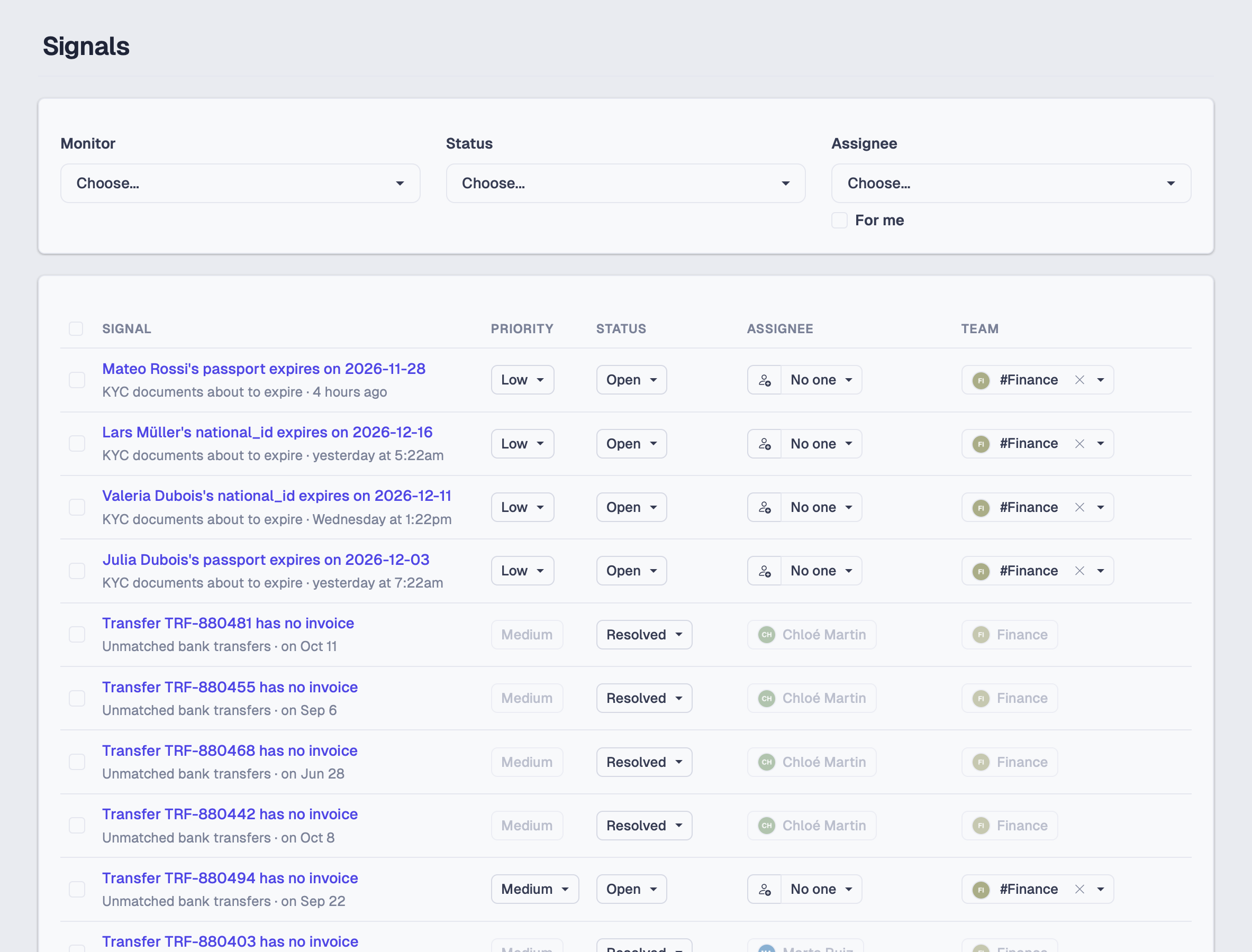
Filter by:
- Monitor.
- Status, including Unresolved and Notification only.
- Assignee, including Unassigned.
- For me: signals assigned to you, plus signals of your teams that have no member yet.
Clear resets the filters. Signals of archived monitors don’t appear.
Bulk changes#
Admins and operators can tick several signals and, from the toolbar, Assign member…, Assign team…, Set status… or Set priority…, then click Apply.
The signal page#
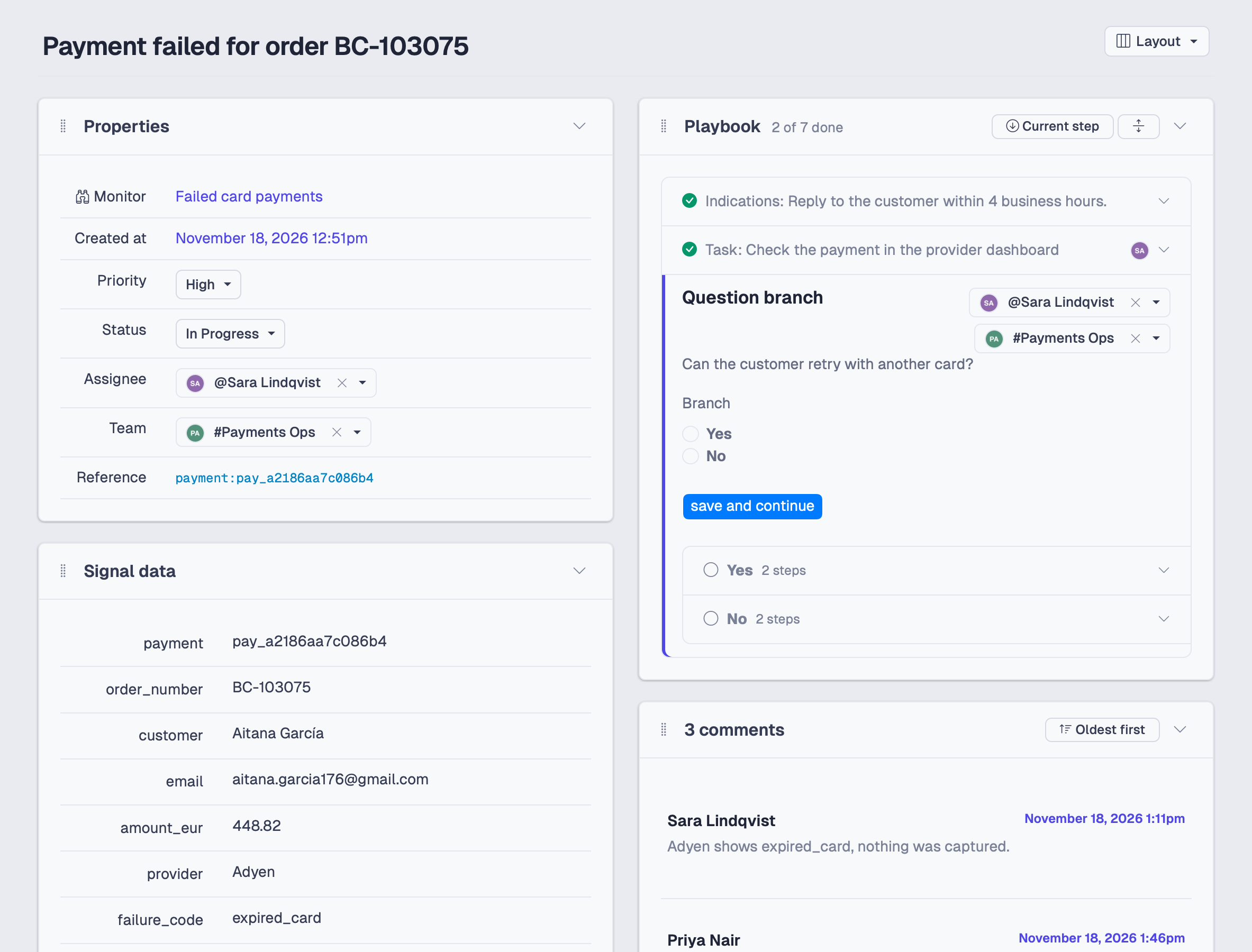
The signal page has these blocks:
- Properties: monitor, creation date, priority, status, assignee, team and Reference (the values of the monitor’s uniq by columns).
- Signal data: the row the monitor found. Pin the fields you want to keep at the top.
- Playbook: the steps for this signal, with the Current step highlighted. See Playbooks.
- Comments: notes from the team, oldest or newest first. Admins and operators can comment. If the signal was sent to Slack, comments are also posted to the Slack thread.
- Recent audits: who changed what, with a link to see all.
Use the Layout menu to arrange the blocks: choose a split (½·½, ⅔·⅓, ⅓·⅔) or One column, collapse or expand all blocks, drag them by their handle, and Reset layout to go back to the default.
Report#
Report in the sidebar shows how signals evolve over a period. Choose From and To (within the last 6 months) and click Update.
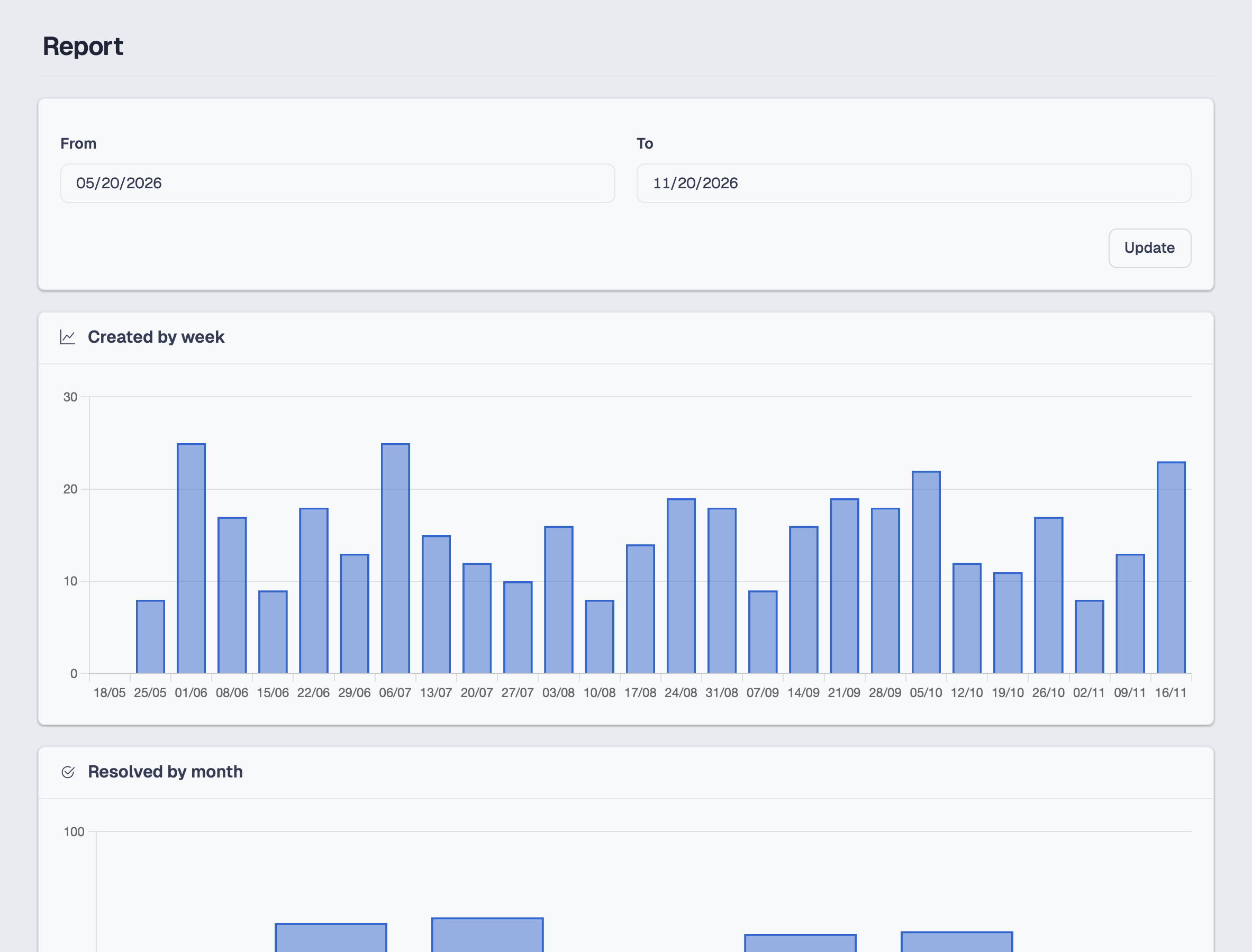
It includes:
- Signals created by week and resolved by month.
- A summary: Signals Created, Signals Resolved and Average Time to Resolve.
- Team Performance: for each assignee, signals assigned, resolved and the resolution rate.
Notification-only signals are left out.
Daily summary#
Once a day, admins and operators get an email with their open signals, their open tasks and their teams’ unassigned signals. It is only sent when there is something to report.