Concepts
Playbooks
A playbook is the list of steps a signal goes through. Each monitor has one, and every signal it creates gets its own copy. Steps run in order: automations and notifications run on their own, and steps that need a person wait until someone completes them.
Admins and operators can edit a monitor’s playbook. Open the monitor and click Edit next to Playbook.
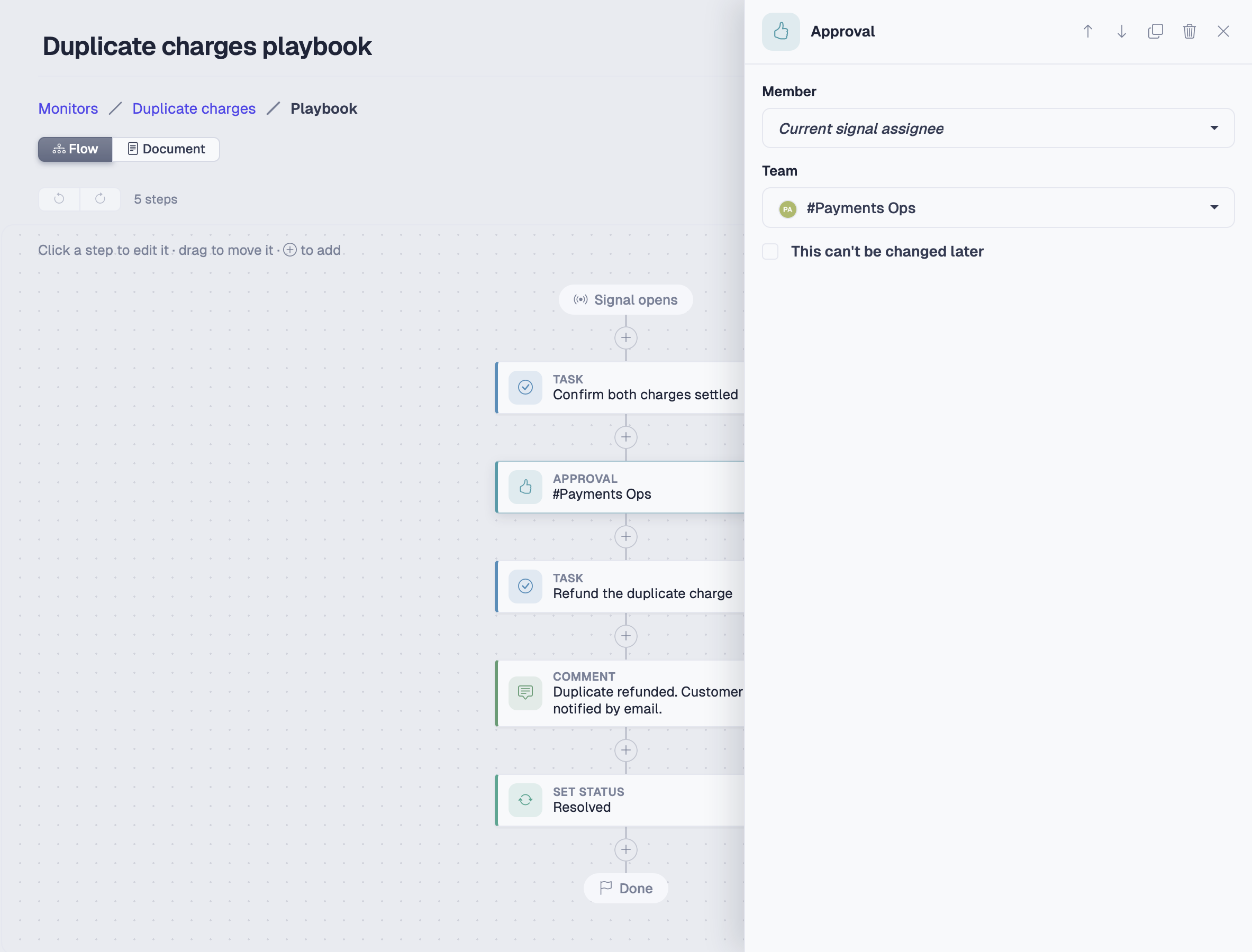
The editor#
The editor has two sections:
- Signal creation: the Signal title new signals get. It can include the row’s columns, for example
Payment {{signal.id}} is stuck. It defaults to the monitor’s name. - Playbook: the steps, shown as a Flow or a Document. Switch between them at the top; the editor remembers your choice.
Flow#
The flow draws the playbook as a diagram, from Signal opens to Done, with branches side by side.
- Click a step to edit it in the side panel. Click outside the panel to close it.
- Drag a step to move it. Drag the background to move around the flow, and use the buttons in the corner to zoom or fit the whole flow on screen.
- Click a + on the line to add a step there. A branching step has a dashed + to add a branch, and clicking a branch’s name edits its title and conditions.
Document#
The document reads the playbook as numbered steps, with each branch’s steps under a heading, numbered 2a.1, 2b.1 and so on.
- Click a step to edit it.
- Type
/, or the name of a step type, in Type / to add a step… at the end of the playbook or of a branch. A + between two steps adds one there, and Add branch adds a branch.
Adding and changing steps#
Adding a step opens a list of step types, grouped as below, and From a template… (see Playbook templates). Type to search it, and pick one with the arrow keys and Enter. The new step opens for editing.
The side panel’s buttons move, duplicate and remove the step. With a step selected:
| Keys | Action |
|---|---|
| ⌥↑ / ⌥↓ | Move the step up or down |
| ⌘D | Duplicate it |
| ⌫ | Remove it |
| ⌘Z / ⇧⌘Z | Undo or redo |
Saving#
Changes are kept in this browser until you click Save changes in the bar at the bottom, so reopening the editor brings them back. Discard changes drops them. If a step has a problem, saving opens it at the field to fix.
Step types#
Display#
- Indications: free text shown in the playbook, for context or instructions.
People#
These steps wait for a person. They show up in Tasks.
- Approval: someone has to approve it before the playbook continues.
- Task: a title and description of something to do.
- Question: asks for an answer, as Free text, Yes/No or Multiple choice (with its Choices). Give it a System Name (optional) to use the answer in later steps.
- Send a form: emails one of the account’s forms to an address, usually from the signal, like
{{signal.customer_email}}. Questions whose key matches a signal field are filled in. With Wait for the answers on, the playbook goes on once the form is sent back, and a System name makes the answers available to later steps as{{<system name>.<question key>}}. The step shows on the signal who it went to and the answers. An address it can’t send to, unsubscribed or over the account’s form limits, is noted on the step and the playbook goes on. - Wait for a form: holds the playbook until the link of a Form link step is answered. See Form links.
Automations#
- Comment: adds a comment to the signal.
- Set priority: changes the signal’s priority.
- Set status: changes the signal’s status.
- Assign signal: changes the signal’s member and team. For each one, choose no change, unassign, or a specific member or team.
- Script: runs JavaScript to compute, transform or format data for later steps. See Scripts.
- HTTP request: calls an API and keeps its response for later steps. See HTTP requests.
- Form link: makes a link to a form for later steps to send, through Slack, SMS, an HTTP request or anything else. See Form links.
Notifications#
- Email: Send to, Subject and Body.
- SMS: Send to and Message. Only shown when SMS sending is available.
- Slack: posts to a channel or user. See Slack.
- Webhook: posts the signal to a Webhook endpoint. See Outgoing webhooks.
Email and SMS steps send to Members or to contacts from the Address book. A member needs a confirmed email to receive emails, or a verified phone to receive SMS. A contact must be verified. See Address book.
In a monitor’s playbook, each notification step has a test button that sends a real message, so you can check how it looks.
Control flow#
- Branch on data: picks a branch based on the signal’s data.
- Ask and branch: asks the assignee a question and runs the branch they choose.
- Wait: holds the playbook for a while, or until a date. See Waits.
See Branches.
Assignees of human steps#
Approvals, tasks, questions and Ask and branch steps have their own Member and Team:
- Current signal assignee or Current signal team follow the signal’s assignment at the moment the step is reached.
- Unassigned or No team leave it open.
- Or choose a specific member or team.
Tick This can’t be changed later to lock the step: only admins can reassign it, and only its assignee or an admin can complete it.
Branches#
A Branch on data step has two or more branches. Each has a title and conditions on the signal’s data, combined with AND and OR groups. Each condition picks a column, a kind, an operation and a value, and can be negated.
The first branch whose conditions match runs; the others are skipped. If none matches, all are skipped and the playbook continues after the branch step.
An Ask and branch step shows the branch titles as options. The branch the assignee picks runs; the others are skipped.
Each branch contains its own steps.
Using data in steps#
Text fields in steps can include values with double braces:
| Syntax | Value |
|---|---|
{{signal.column}} or {{column}} |
A column of the row that created the signal. |
{{vars.key}} |
An account variable. |
{{system_name.response}} |
The answer to a question with that System Name. |
{{system_name.key}} |
A key of what a script with that System Name returned. |
The signal title can use the row’s columns, but not account variables or answers.
System names use letters, numbers and underscores, must be unique within the playbook, and can’t be meta, monitor, signal or data.
Scripts#
A Script step runs a short piece of JavaScript to compute, transform or format data, such as a score, a due date or a message, and later steps use what it returns as {{system_name.key}}. Script steps covers writing, trying and limits.
HTTP requests#
An HTTP request step calls an API: issue a refund after an approval, look up a customer, open a ticket elsewhere. Set the method, the URL, any headers and, except for GET, a JSON or text body. Each can hold {{…}} values from the signal, earlier steps and the account’s variables; keep tokens in a variable and write Bearer {{vars.api_token}} in a header, so they aren’t in the playbook. Values in the URL are URL-encoded, so a signal’s value can’t change the host or the path; only one that starts the URL, as in {{vars.api_url}}/orders, goes in as it is. In a JSON body they are escaped, so "{{signal.note}}" stays valid JSON whatever the note says.
{"order_id": "{{signal.order_id}}", "amount": {{signal.amount}}, "reason": "{{approval.comment}}"}
With a system name, later steps and branch conditions read the response: {{refund.status}}, {{refund.headers.location}}, and the body’s fields as {{refund.body.id}} when the server answers JSON. Bodies are kept up to 64 KB. Send a test request in the editor sends it with the monitor’s latest signal (earlier steps’ values are empty) and offers the body’s fields as tags.
The server has 5 seconds to take the connection, 10 to answer, and the whole request 20 at most. Redirects aren’t followed. Anything but a 2xx answer, a timeout or a refused host is a failure, handled like a script’s: Stop the playbook here, with Run again and Continue without it on the signal, or Note the error and go on, which gives later steps {{refund.error}}.
On Pulso’s cloud, requests only go to public addresses, as outgoing webhooks do. The signal shows the method and URL as written in the playbook, not with their values in, and the response.
Form links#
Send a form only emails. To reach someone another way, split it in two steps:
- A Form link step picks a form and makes a link to it, with the questions whose key matches a signal field filled in. Its System name gives later steps the link as
{{refund_link.url}}: post it to a Slack channel, text it, or send it to another tool with an HTTP request. The playbook goes on at once. - A Wait for a form step, after the steps that send the link, picks that Form link step and holds the playbook until the link is answered. With a system name, later steps and branch conditions read the answers as
{{refund.<question key>}}.
Anyone holding the link can answer it, once; it says who it was for only by where you send it. After that, the link says it was already answered and doesn’t show the answer. The link doesn’t expire, though closing the form stops it. Links don’t count towards the account’s form email limits, and don’t show among the form’s sends.
Give up after stops waiting after some minutes, hours or days; then {{refund.timed_out}} is true, for a branch to follow up. As with a wait, Go on now on the signal skips it, and a resolved signal holds the playbook until it’s reopened. On the signal, the Form link step shows the link and whether it was opened or answered, and Wait for a form shows the answers.
Waits#
A Wait step holds the playbook before the next step: for some minutes, hours or days (a year at most), or until a date from the signal or an earlier step, such as {{signal.due_at}}. A date without a zone is read as UTC. When the date comes out empty or isn’t a date, the step notes it and the playbook goes on at once; a date already past goes on at once too.
On the signal, the step shows when the playbook goes on. Go on now skips the rest of the wait. If the signal is resolved while it waits, the playbook stays on hold; reopening the signal goes on, at once when the wait is over by then.
Completing steps on a signal#
On the signal page, the Playbook block highlights the Current step. Fill in what it asks for and save to continue. An approval reads “In order to continue this step must be approved”.
When a signal is resolved, its playbook is put on hold. Reopening the signal resumes it.
Playbook templates#
Templates are reusable sets of steps. Manage them from Build → Playbook templates:
- Click New template, enter a Name and Description, and click Save.
- Add steps in the editor, as in a monitor’s playbook.
To use a template, choose From a template… when adding a step, pick the template from the list and choose how to add it:
- Copy inserts the steps as editable copies, with no link to the template.
- Link references the template. Later changes to the template apply to new signals.
A linked template’s step lists the template’s steps. Copy the steps here swaps the link for editable copies.
A template’s page shows which monitors link it. A template can’t be deleted while a monitor links it.
When changes apply#
Each signal keeps the playbook it was created with. Editing a monitor’s playbook, or a linked template, only affects signals created afterwards.